Copy any web table to Excel in two clicks
Table to Excel is a Chrome extension. Click its icon, press Copy on the table you need, and paste it into Excel or Google Sheets. Rows and columns land where they should.
Coming soon to the Chrome Web Store
Highest mountains
| Mountain | Height (m) | First ascent |
|---|---|---|
| Everest | 8,849 | 1953 |
| K2 | 8,611 | 1954 |
| Kangchenjunga | 8,586 | 1955 |
| Lhotse | 8,516 | 1956 |
| Makalu | 8,485 | 1955 |
How it works
-
1
Click the icon
Or right-click the page and choose Show tables on this page.
-
2
Pick a table
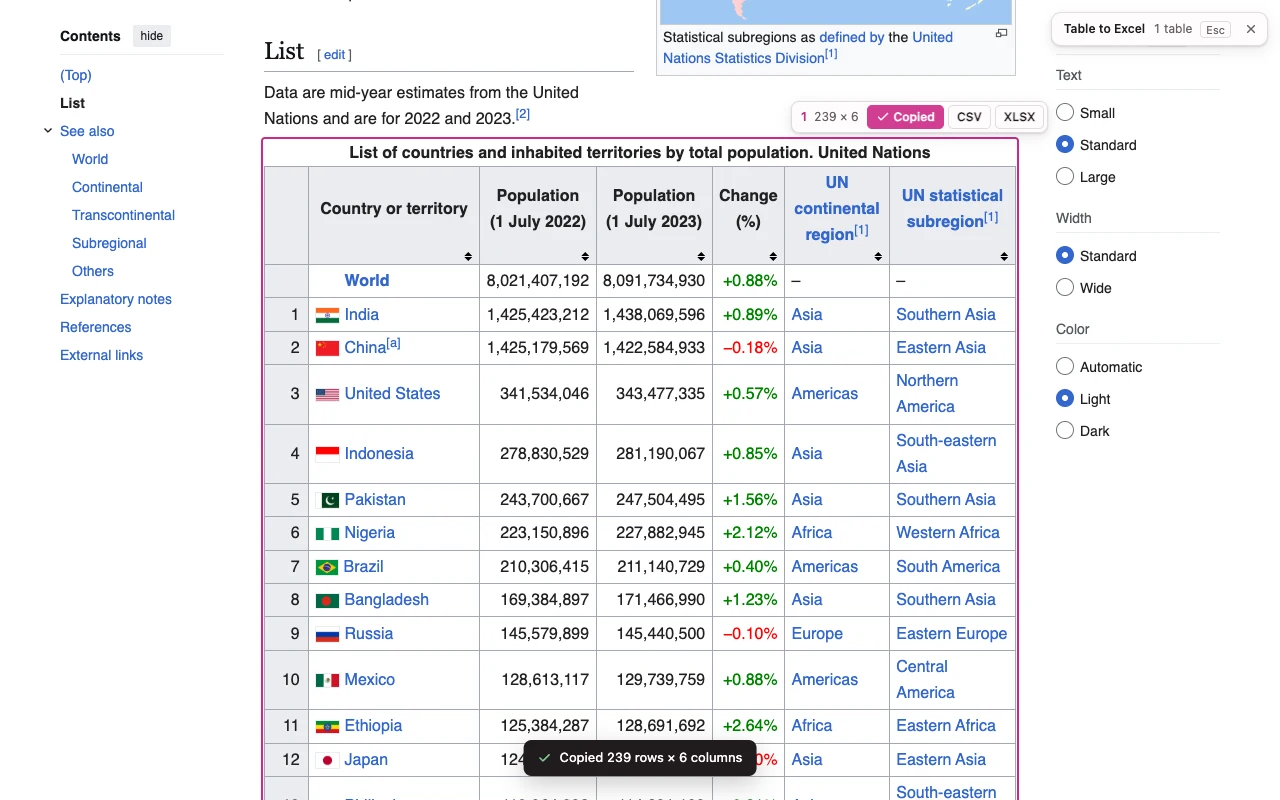
Every table gets a frame with its size, like 65 × 9, and three buttons: Copy, CSV, XLSX.
-
3
Paste or download
Copy puts the table on your clipboard for Excel or Google Sheets. CSV and XLSX save a file.
Clean data, not a copy of the page
- Merged cells are expanded, so every row has the same columns
- Footnote marks like [1] and hidden sort keys are removed
- Empty columns and spacer rows are dropped
- Numbers stay numbers in the Excel file
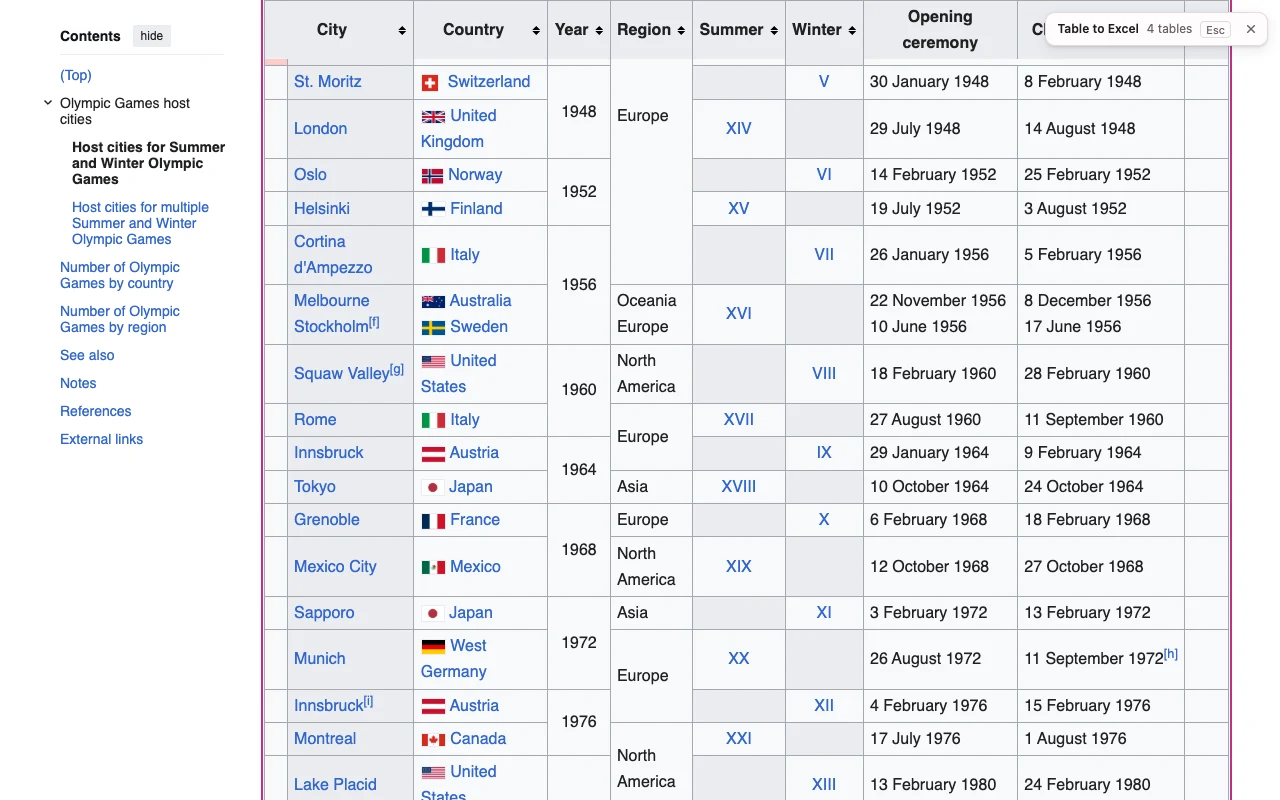
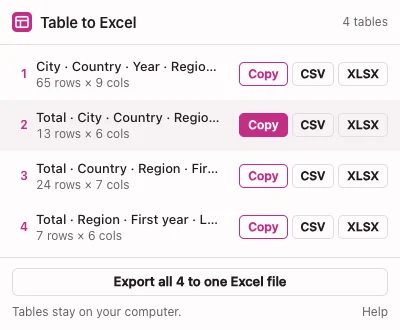
- Export all saves every table on a page to one Excel file, one sheet per table
- 10,000 rows copy in under a second
| Mountain | Height (m) | Range |
|---|---|---|
| Everest[1] | 8,849 | Himalaya |
| Kangchenjunga | 8,586 | |
| Lhotse[2] | 8,516 |
| Mountain | Height (m) | Range |
|---|---|---|
| Everest | 8849 | Himalaya |
| Kangchenjunga | 8586 | Himalaya |
| Lhotse | 8516 | Himalaya |
On real pages
Your tables stay on your computer
Table to Excel reads a page only when you click its icon or the menu item. Tables are processed in your browser and never uploaded. There is no account and nothing to sign up for.
Questions
Is it free?
Yes. Copy and CSV export are free for any table. XLSX export and Export all are free for now. If they become paid, the extension will say so before you use them.
Does it upload my tables anywhere?
No. The extension works inside your browser and doesn't send page content or tables anywhere.
Which sites does it work on?
Any page with HTML tables: Wikipedia, sports and finance statistics, government data portals, documentation, internal reports. Chrome doesn't let extensions run on its own pages or on the Chrome Web Store. Tables drawn as images, or built without the table tag, aren't detected.
Does it work with Google Sheets?
Yes. Press Copy, then paste into Google Sheets. Rows and columns stay in place.
Why does it ask for these permissions?
activeTab and scripting let it read the tab you clicked it on, and only that tab. contextMenus adds the right-click menu item. It can't see your other tabs or your browsing history.
A table came out wrong. What should I do?
Email support@tidykit.app with the page address and what you expected to get.